カテゴリー iPhone App (English)

UNO Score Book ver1.3 Released!

UNO Score Book

This app is not a game.
This is an app that allows you to easily calculate the score of the card game “UNO” and also allows you to keep a record of the game.
The score calculation method complies with not only international rules but also Japanese rules.

As of 2023, UNO is sold by Mattel Inc.
For more information about Mattel Inc., please visit the following website.
https://about.mattel.com
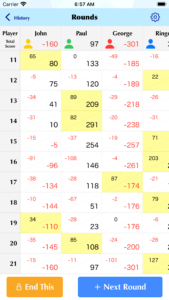
Screen shot
Screen shot

USAGE

A. FIRST TIME

  • When you first launch the app, tap “Settings” to open the settings screen.
  • Select the default scoring method. This is the default setting when you start the game, and can be changed later for each game.
  • If you have regular members, such as family or friends, who you always hang out with, it is convenient to register them as “regular members”. To register, tap “Regular member”.
  • Tap “New member” on the “Regular members” screen.
  • Enter the player name, select the player symbol color from 10 colors, and tap “Done”.
  • Add as many regular members as you need.

B. GAME START

  • Tap “New Game” on the top screen.
  • On the “New Game” screen, tap “Select Player” first.
  • To select from registered regular members, tap “From Regular Members”.
  • Select the member you want to add and tap “Add members”. (It will not be added if you do not tap it)
  • If you want to add an unregistered member as a player, tap “New member”.
  • Enter the player name, select the symbol color, and tap “Done”.
  • At this time, if you turn on “Add to regular members”, you can add them to your regular members.
  • Return to the “New Game” screen and enter a name for the game (a title that tells you what time it was played).
  • Select the play date (the day you actually played) on the calendar.
  • To change the scoring method, tap the rule you want to use.
  • Once you have entered everything, tap “Start!”.

C. ENTERING ROUND SCORES

  • After the game starts, a list of players will appear, so tap on the winner after playing the first round.
  • A medal will be displayed for the player who tapped it, so enter the total points of remaining cards for the other players.
  • If you enter all the total points of remaining cards other than the winner, the winner’s score will be calculated, so tap “Save Round Score”.
  • After playing the next round, tap “Next Round” on the “Rounds” screen and register the points using the same way.

D. END OF GAME

  • This app does not set any conditions for ending the game. When you’re done playing, tap “End This” on the “Rounds” screen.
  • This will freeze the game and prevent you from making changes.
  • If you end it by mistake, tap the gear icon at the top right of the “Rounds” screen.
  • Tap “To change to the playing state, tap this” at the bottom of the screen and tap “Save” to return to playing.

E. BACKUP AND RESTORE

  • By tapping “Save backup to file” on the “Settings” screen, you can save all data currently saved in the app to a file.
  • Also, if you reinstall the app, tap “Restore saved backup” and select the back file saved on your device to return to the state it was in when it was saved.
  • You can use this feature to share your play data with your family and friends.

Requirements

iPhone(iOS 14.0 or later)

  • This software is FREEWARE. There is NO CHARGE Upon use.
  • CROSS LABORATORY holds the copyright.

Disclaimer

  • This software is NO GUARANTEE. We shall not take responsibility for any damage that occurred because of the use. Please use it in the responsibility of own.

History

  • v1.0 (2023-10-11)
    • Released.
  • v1.1 (2023-10-14)
    • Fixed display bugs and logic bugs.
  • v1.3 (2023-12-31)
    • Changed to display a message when the list is empty.
    • Fixed bugs with player selection.
      UNO Score Book

Quick Password Safe ver1.8 Released!

Quick Password Safe

Manage Your Password More Easily And More Securely.

This app safely keeps the password as a safe(cashbox).

Recently, many accidents that are unauthorized access to accounts by the recycling of password have occurred. With the increase in IT service, in order not to disturb the daily life, we want to avoid that the account is stolen. However, to perform it, it becomes necessary to set a different password in each.
That means, it is impossible to remember passwords with one’s head. If you use this application, the app will remember your passwords, instead of you.

Screenshot

FEATURES

  • It does not clearly display suddenly when viewing the password.
    (You can fine-tune the brightness of the character using the slider.)
  • It will return to its original position when you release your finger from the slider, it is suitable to browse secretly.
  • ID and password can also be used to copy. (Not recommended)
  • You can protect the app itself with a passcode.

USAGE

A. SETTING THE PROTECTION PASSCODE

  1. If this is the first time, set the (any 4-digit) passcode to protect the app.
  2. If you press [Change Passcode] button at the bottom of the [PW List] screen, the screen to change the passcode you set opens.
  3. Set the passcode in the same way as the first.
  4. When you stop using it, press the [Close And Lock] button to protect the app.
  5. Enter the passcode in the startup screen when you use again.

B. PASSWORD REGISTRATION

  1. Press the [+] button in the [PW List] screen To open the create screen.
  2. Fill PW information(such as a password, user ID), and press the [Save] button.
  3. If you want to change the PW information, open the [Edit PW] screen by pressing the [Edit] button at the [PW Detail] screen.
  4. From ver1.2, press the [Generate] button to set a password by the app “Quick Password Maker” if you’d installed it. Otherwise, you can download it from the App Store.

C. SEE PASSWORD

  1. Tap the title of information you want to see in the [PW List] screen.
  2. [PW Detail] screen is displayed, but the password is hidden.
  3. Make sure the safety of your surroundings, and slide the slider to the right. Then password will gradually appear.

D. PASSWORD DELETION

  1. Press the [Edit] button on the [PW List] screen.
  2. Tap the [-]icon of the PW that you want to delete, and then press the [Delete] button.
  3. Press the [Done] button at the end.

Requirements

iPhone(iOS 14.0 or later)

  • This software is FREEWARE. There is NO CHARGE Upon use.
  • CROSS LABORATORY holds the copyright.

Disclaimer

  • This software is NO GUARANTEE. We shall not take responsibility for any damage that occurred because of the use. Please use it in the responsibility of own.

History

  • v1.0 (2013-07-03)
    • Released.
  • v1.1 (2015-12-10)
    • Adapted to iOS 9.
    • Added a function to search entries.
    • Added a function to clear the clipboard by shaking terminal.
  • v1.1.1 (2015-12-17)
    • Fixed a bug with display.
  • v1.2 (2016-06-17)
    • Using a random string generated by the app “Quick Password Maker” as a password was available.
  • v1.3 (2018-11-20)
    • Adapted to iOS 12.
    • Some layouts were changed according to the screen size of the iPhoneX series.
    • The password string can be visible on the edit screen.
  • v1.3.1 (2018-11-22)
    • Fixed bugs with searching.
  • v1.4 (2019-01-18)
    • Locked automatically when leaving the app for specified time.
    • Fixed issue with some views.
  • v1.5 (2020-05-02)
    • Adapted to iOS 13.
    • The screen layout has been fine-tuned.
  • v1.5.1 (2020-05-05)
    • Fixed the text color defect.
  • v1.6 (2021-03-24)
    • Adapted to iOS 14.
  • v1.7 (2022-03-23)
    • Adapted to iOS 15.
    • The screen layout has been fine-tuned.
  • v1.7.1 (2022-06-20)
    • Fixed a bit.
  • v1.7.2 (2023-07-10)
    • Adapted to iOS 16.
    • Fixed a bit.
  • v1.8 (2023-08-10)
    • Updated the passcode screen. The old style screen can be used by tapping the information icon at the bottom right.

Quick Password Safe

Himekuri Calendar ver1.6 Released!(Old Name: Cl Daily Calendar)

Himekuri Calendar

Everyday, turn and turn. The simple daily calendar!

This is an app that mimics a “Daily Calendar” (which is called “Himekuri” in Japanese).

There are many calendar apps, and most of them update automatically and they’re useful.
However, do you not feel that it is unsatisfactory? You were looking forward to turning the calendar in a childhood, weren’t you?
We no longer look at a “Daily Calendar” almost in recent years. But, if you use this app, you can taste the pleasure to turn a “Daily Calendar” every day at hand.
It’s more meaningful that “you turn it every day” than that it’s practical.

Screen shot
Screen shot

FEATURES

  • It’s a daily calendar in conjunction with iOS standard calendar.
  • You need to turn it properly in every day. (It will not be turned automatically.)
  • You can view events that are registered in the iOS standard calendar.
  • You can also view holidays if you download a holiday calendar.

USAGE

A. TURN THE CALENDAR

  1. Trace from the bottom to the top of the screen, you can turn the calendar.
  2. Trace from the top to the bottom conversely, you can return the calendar turned over.

B. SET HOLIDAY CALENDAR

  1. Tap around “weekday” on the screen.
  2. Then “Choose Holiday Calendar” button is displayed. And press it.
  3. “Choose Holiday Calendar” screen opens, and press “OK” button to choose the calendar you want to display as a holiday.

In addition, you can get holiday calendar data from “iCal Calendars”(the official site of Apple Inc.).
http://www.apple.com/downloads/macosx/calendars/index.html

C. CHANGE BG-IMAGE OF HOLIDAYS

  1. Tap an item named “Himekuri” in the Settings app.
  2. Tap the “Background”, when the setting screen appears.
  3. The selected symbol will be used as the background of the date of the holiday.

Requirements

iPhone(iOS 14.0 or later)

  • This software is FREEWARE. There is NO CHARGE Upon use.
  • CROSS LABORATORY holds the copyright.

Disclaimer

  • This software is NO GUARANTEE. We shall not take responsibility for any damage that occurred because of the use. Please use it in the responsibility of own.

Misc

  • You will jump to the today’s date when you shake your device.

History

  • v1.0 (2014-01-28)
    • Released.
  • v1.1 (2016-02-03)
    • Adapted to iOS 9.
    • Changed the way for entering to the config.
    • Enabled selecting calendars to show.
    • Added the manual.
  • v1.2 (2016-06-14)
    • Fixed a bug that the badge can not be displayed.
      (Please validate ‘Notification’ to use the badge.)
  • v1.3 (2019-01-03)
    • Adapted to iOS 12.
    • Some layouts were changed according to the screen size of the iPhoneX series.
    • We have abolished the display of current date in badge.
    • We made it possible to notify you when the calendar was not turned over until noon.
  • v1.4 (2020-05-06)
    • Adapted to iOS 13.
    • Fixed the time setting process of the notification.
  • v1.5 (2021-03-24)
    • Adapted to iOS 14.
  • v1.6 (2023-07-24)
    • Adapted to iOS 16.
    • App name has been changed.

Himekuri Calendar

Quick Password Maker ver1.5 Released!

Quick Password Maker

Get Your Password Stronger and Safer!

This app automatically creates a new password.

Recently, many accidents that are unauthorized access to accounts by the recycling of password have occurred. With the increase in IT service, it becomes necessary to set a different password in each. However, to perform it, when a person thinks with one’s head, there is a limit in both the variation and the strength. If you use this application, the application makes stronger and safer password, instead of you.

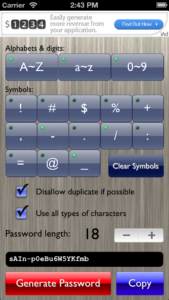
Screenshot of Quick Password Maker
Screenshot

Features

  • You can specify each use and non-use uppercase, lowercase, numbers as character types.
  • You can specify individual use / non-use from 13 types as a symbol.
  • You can specify to use one or more times always the character types of all.
    Even if how many symbols are specified, symbol is counted as one kind.
  • You can specify not to use more than once the same character.
    In some cases, you can not specify it in consideration of character types and password length.

Usage

  1. Specify the character types to use for password.
  2. Specify the length of the password.
  3. Press the button “Generate Password”.
  4. Copy and use as needed.

Requirements

iPhone(iOS 14.0 or later)

  • This software is FREEWARE. There is NO CHARGE Upon use.
  • CROSS LABORATORY holds the copyright.

Disclaimer

  • This software is NO GUARANTEE. We shall not take responsibility for any damage that occurred because of the use. Please use it in the responsibility of own.

Misc

  • After generate passowrd, Shake your device to erase the password.

History

  • v1.0 (2013-06-22)
    • Released.
  • v1.1 (2016-06-16)
    • Adapted to iOS 9.
  • v1.2 (2018-10-04)
    • Adapted to iOS 12.
    • The max password length has been expanded to 128 chars.
  • v1.3 (2020-05-02)
    • Adapted to iOS 13.
    • The screen layout has been fine-tuned.
  • v1.4 (2021-03-24)
    • Adapted to iOS 14.
  • v1.5 (2023-07-22)
    • Adapted to iOS 16.

Quick Password Maker